

Program Installation
The Melbis Shop platform is built on a unique hybrid architecture and consists of two essential parts: the server core and a local client application. The server core, as its name suggests, is installed and deployed directly on your remote server. It is shared across the entire project, handles centralized database storage, and manages customer interaction on the website (it will be covered in more detail later). For now, our main goal is to focus on the client side of Melbis Shop, which will become your primary working tool.
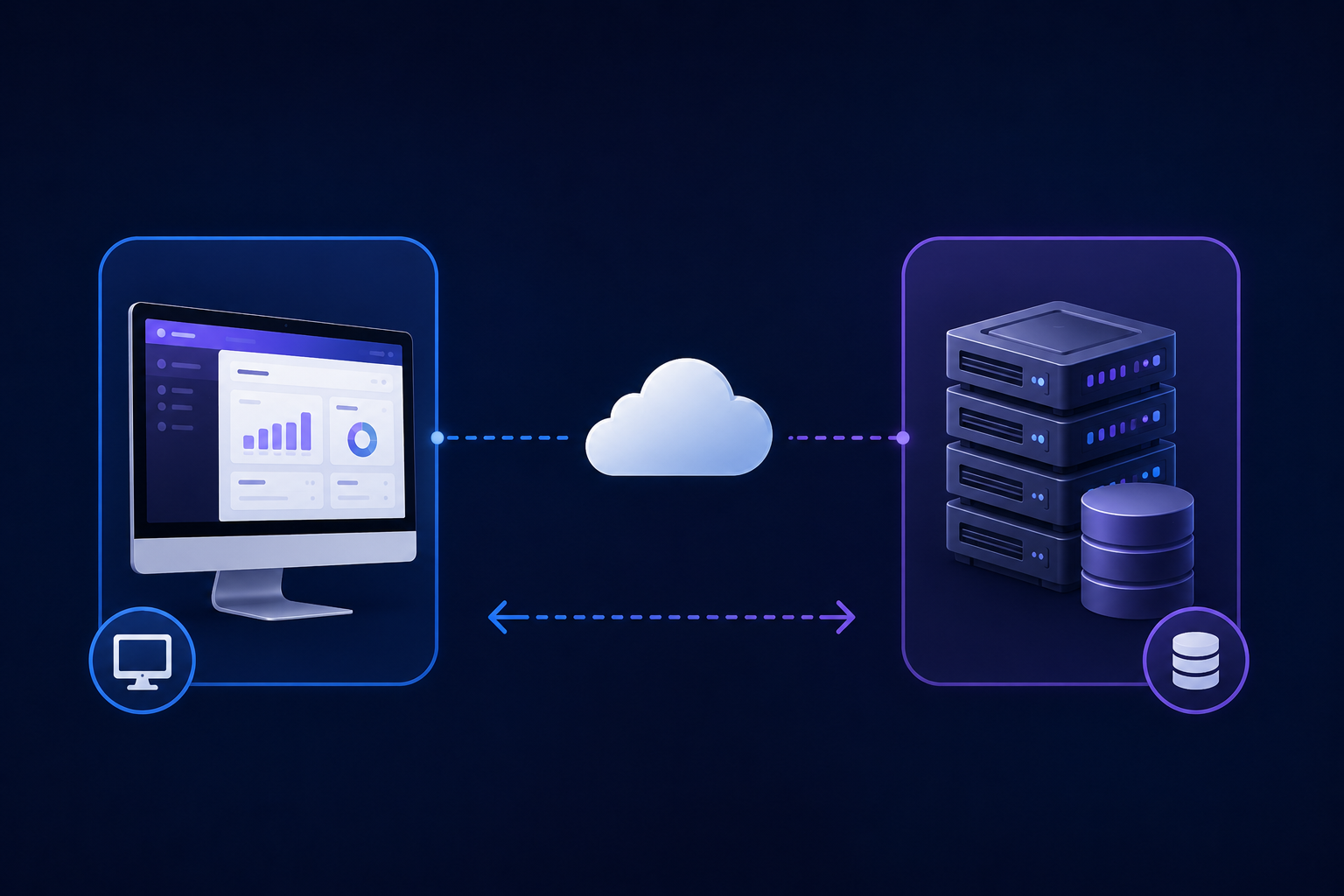
Unlike the server core, which exists strictly as a single instance, the client part of Melbis Shop can be used in multiple copies. It is installed on the local computers or laptops of every employee in your company who has access to process management: from the business owner and chief administrators to content managers, logistics staff, and support operators. It is through the client application that high-speed batch work is carried out with your remote server, where the main database is stored.
Step 1. Downloading and installing the distribution package
First of all, you need to obtain the official and safe installation package of the program. To do this, go to the official Melbis website and open the dedicated download section "Installation Packages": https://melbis.com/en/download/
This page contains a list of all released Melbis Shop builds. The top row is not necessarily the one you need: at the top there is a test version marked Beta, and its buttons are gray. You need the row marked latest with blue buttons — this is the latest stable build, containing all accumulated fixes and new tools. Click the blue button with the exe file name, and it will be downloaded to your disk.
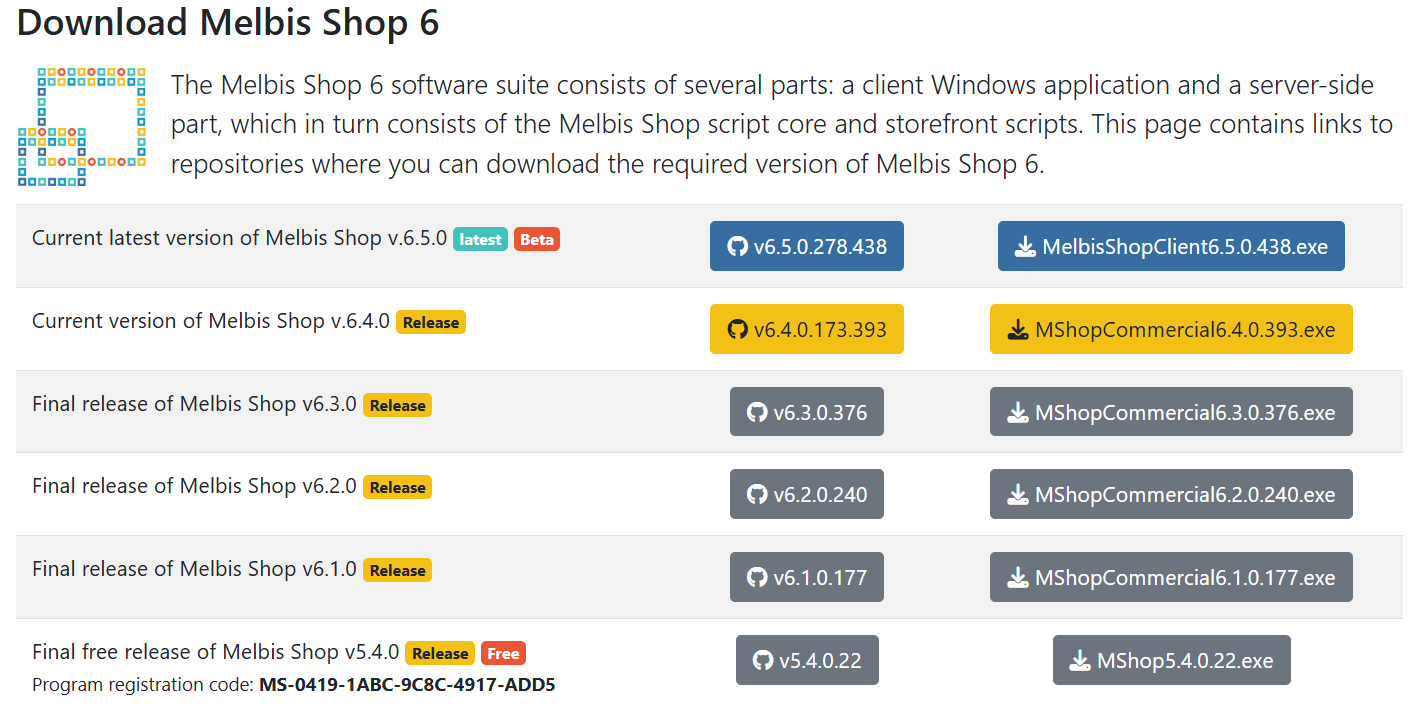
Once the download is complete, run the installer file you received.
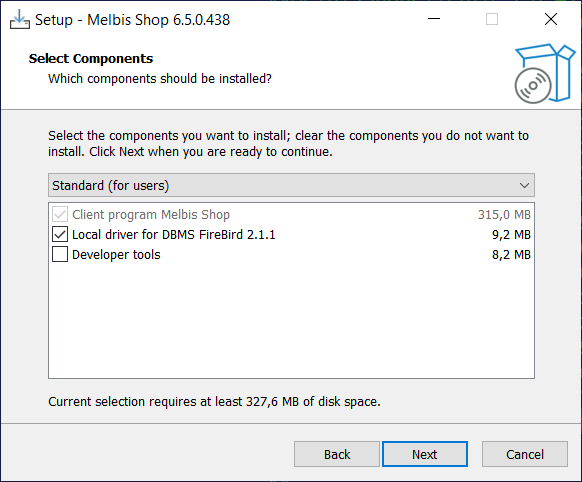
A standard and intuitive Windows Setup Wizard will appear on the screen. Simply follow its step-by-step prompts by clicking the “Next” button. For most users, the default configuration offered by the system is perfectly suitable. The file copy process will take only a few seconds.
Step 2. Initializing and configuring the local database
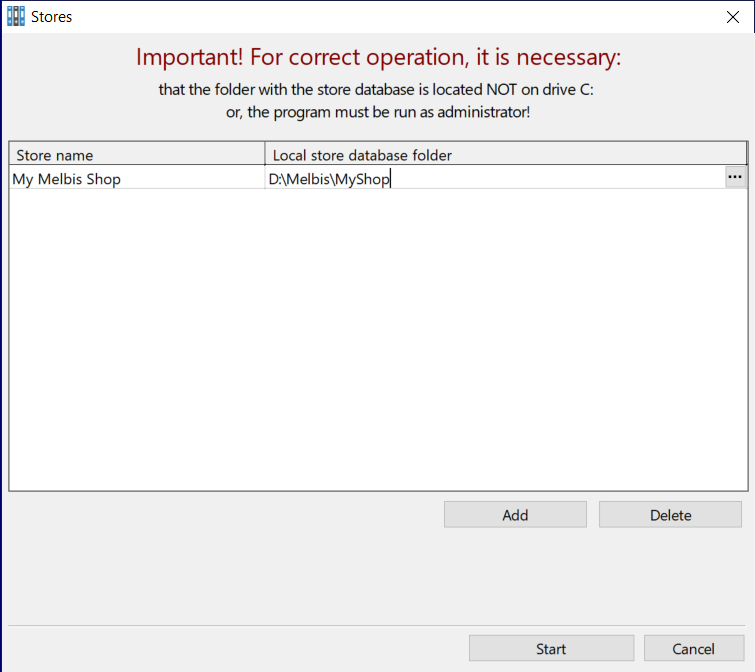
After installation is complete, find the program shortcut on your desktop and launch it. On the very first start, Melbis Shop will automatically open a dialog window for creating the local database of your online store. The architecture of our platform is designed to be highly flexible: if you own an entire network of projects, you will be able to easily manage all your stores from this single client application. However, keep in mind that for each individual site, you will need to initialize its own independent local database.
So what is the local database? In essence, it is your personal temporary storage (a buffer or “smart cache”) located right on your computer. The client application downloads the necessary amount of data from the main server database into this local database so that you can instantly edit thousands of products, prices, and attributes without delays and without constantly waiting for a response from the internet.
Nevertheless, you need to allocate the right place on the disk for this database.
Once all directories are specified and the paths are selected, click the "Start" button to continue the file initialization process.
Step 3. Configuring connection settings for the remote store
The next configuration window will open, where the program will ask you to specify the connection settings for your remote store. These include the project web address, as well as the user's unique login and password for authorization in the system.
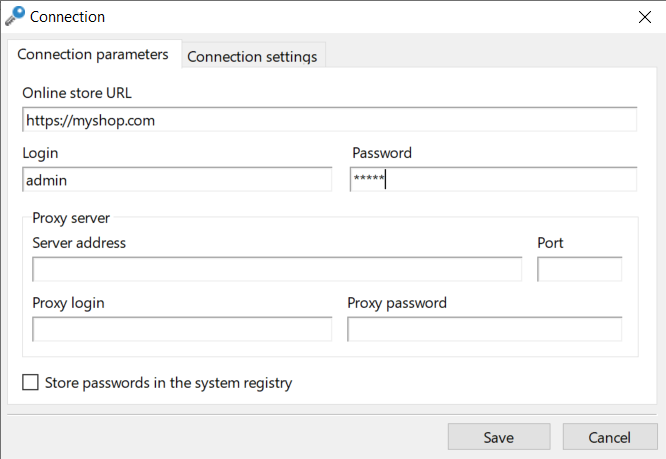
Carefully fill out the form provided with the following initial values:
- Store URL: https://my-shop.com — here you must enter the full domain name of your online store that you registered earlier, обязательно beginning with the secure https:// prefix
- Login: admin — this is the username of the store’s main administrator account, which has absolute access rights. This login is created automatically in the system by default.
- Password: admin — the standard technical password for the initial login.
- Proxy server settings: specify them only if you know what they are. Otherwise, leave the fields empty.
In addition, in the same interface you can switch to the adjacent tab called "Connection settings". This section contains the network data exchange parameters. The Melbis Shop developers have provided convenient presets here: you can simply click the button that visually matches your current internet connection speed. The program will automatically adapt packet sizes and traffic compression algorithms to your communication channel. This is part of our signature traffic-minimization philosophy, which allows comfortable work even on unstable mobile internet. This setting is not fixed — you will be able to adjust it at any time in the future.
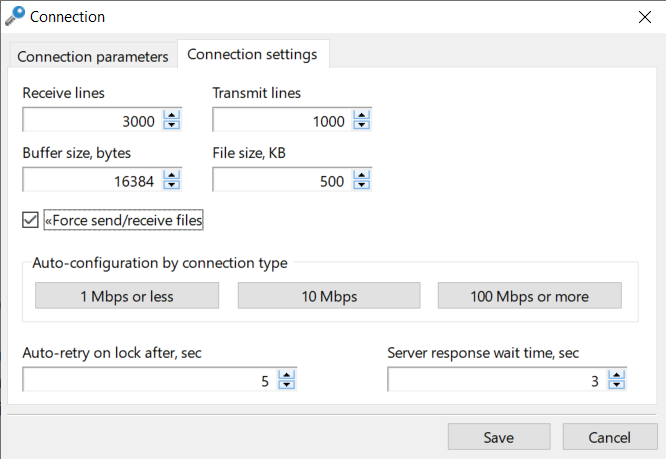
Once all fields are filled in, click the "Save" button. The program will save the configuration profile, automatically open the main manager window, and make its first attempt to connect to the remote server. Of course, at this stage the connection will temporarily fail, because your purchased server is still completely clean, and it does not yet have the most important component — the server core. We need to prepare the server environment and deploy the Melbis Shop platform core. This technical process is covered in the next detailed step of our documentation: Melbis Shop server installation.