

Server Installation
It’s time for the final finishing touch — configuring your newly purchased virtual server and installing the Melbis Shop platform core on it. We assume that you have already successfully completed all the previous steps, and now you have all the basic keys to your business in hand. At this stage, to connect all components into a single system, we will need: your server’s IP address, the superuser (root) password, and, of course, your registered domain name.
Please note: for now, do not try to open your website in a browser. Updating global domain zones (DNS) is a process that takes some time. Information about the new domain must propagate across servers, which usually takes from a few minutes to several hours. In addition, your local internet provider or the browser itself may temporarily cache old data, so sometimes you need not only to wait, but also to restart your computer or router. Nevertheless, this does not interfere with the remote installation of the server core through our application — the process will run strictly by IP address.
Step 1. Configuration and installation launch
Open the Melbis Shop client application installed earlier. In the top main menu, select "Development", and then click "Server" in the drop-down list. A special server management window will appear. In it, switch to the "Connection" tab to specify the access credentials.
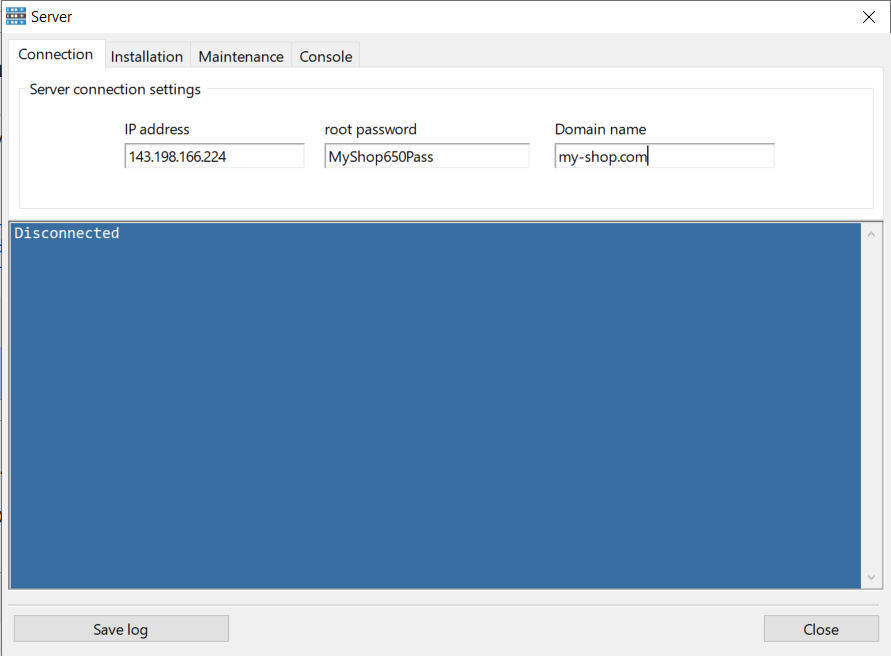
These three fields are strictly required:
- IP address: 121.122.123.124 — the unique network address of your server, consisting of four numbers separated by dots.
- root password: the password you created and specified when setting up the virtual server with your hosting provider.
- domain name: the name of your registered domain in plain form (enter it without any extra prefixes such as https:// or www., for example: my-shop.com).
Next, switch to the adjacent "Installation" tab and confidently click the "Install server" button. A console will open in the lower part of the window, where command lines will begin to appear in real time. At this moment, our application does all the complex work for you: it remotely connects to the server, installs the required environment (web server, PHP, modules), downloads the latest Melbis Shop platform core, and sets the correct file permissions.
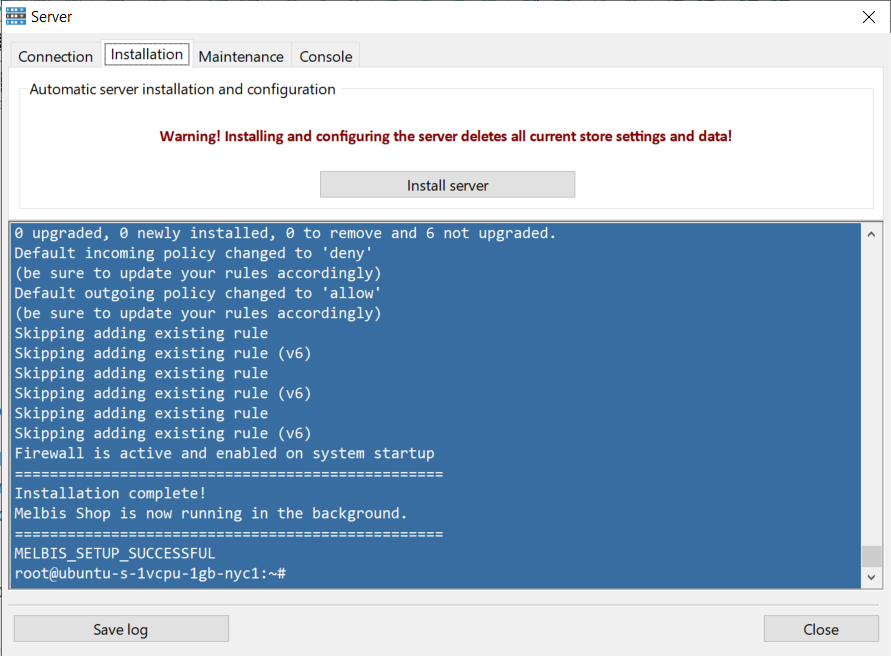
After all scripts have finished running, you will definitely receive a system pop-up message from the application stating that the installation has been completed successfully. Close it, and then close the "Server" window itself using the "Close" button.
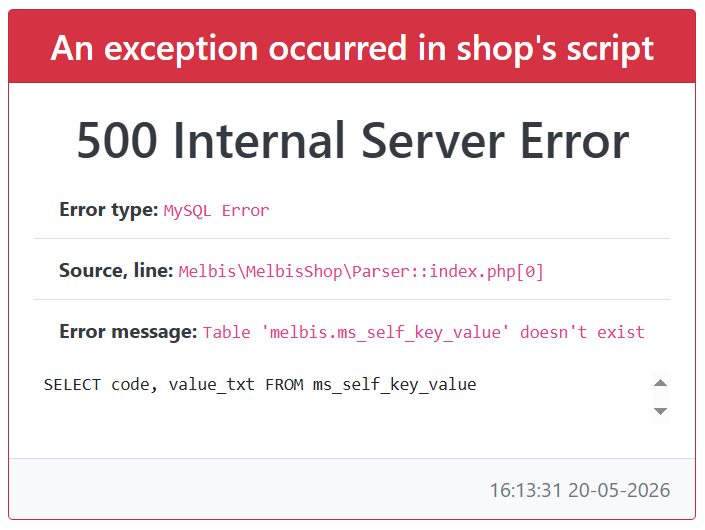
Now is exactly the right time to open your favorite browser and try visiting the site using your registered domain name. If everything went as planned, the domain has already updated and the server has been configured successfully, then you will see a technical window from the Melbis system with an error message. Don’t worry! At this stage, this is absolutely normal and even a good sign. It means that the web server is working, the core is responding, but we have only unpacked the platform and have not yet initialized the database structure.
Step 2. Database initialization and basic setup
Return to the client application. Now select "Development" in the top menu and open the "Installation" window. (If at this stage you get a connection error, just check the basic connection parameters in the "System" -> "Connection" menu. Make sure the full URL of your domain is specified there correctly with the https:// prefix, and that the default login and password are set: admin).
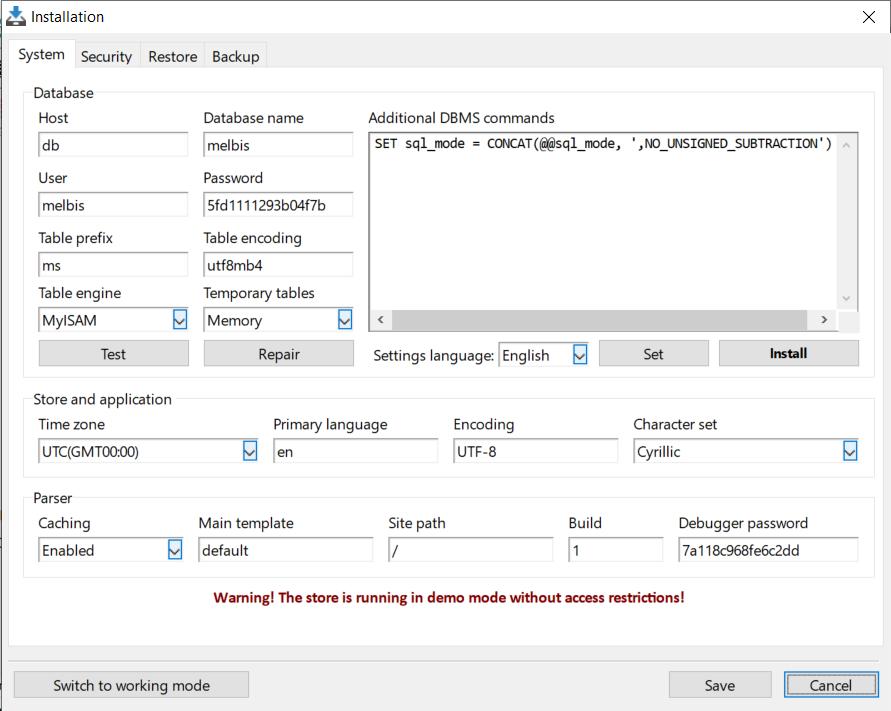
In the installation window that opens, most of the complex settings have already been filled in automatically by the system for your convenience. The only thing required from you is to carefully check and, if necessary, specify your personal regional settings:
- Settings language: select the main language of the settings interface that is most convenient for you.
- Primary language: specify the two-letter language code (according to the international standard, for example, en, de) that will be considered the main language for the storefront of the site.
- Time zone: select your current time zone so that orders and logs are recorded with the correct time.
- Character set: specify the preferred character set (encoding) for correct font display in the Melbis Shop local application interface.
After checking the parameters, first click the "Install" button. This will start the most important operation — initializing and deploying a clean database on your server, as well as creating the table structure.
You will receive a system message that the operation was completed successfully.
That’s it! Your dedicated server is now fully installed, configured, and ready to go. It’s time to return to the browser and refresh your website page. Now, instead of a system error, you will see the welcome screen of the minimal starter storefront.
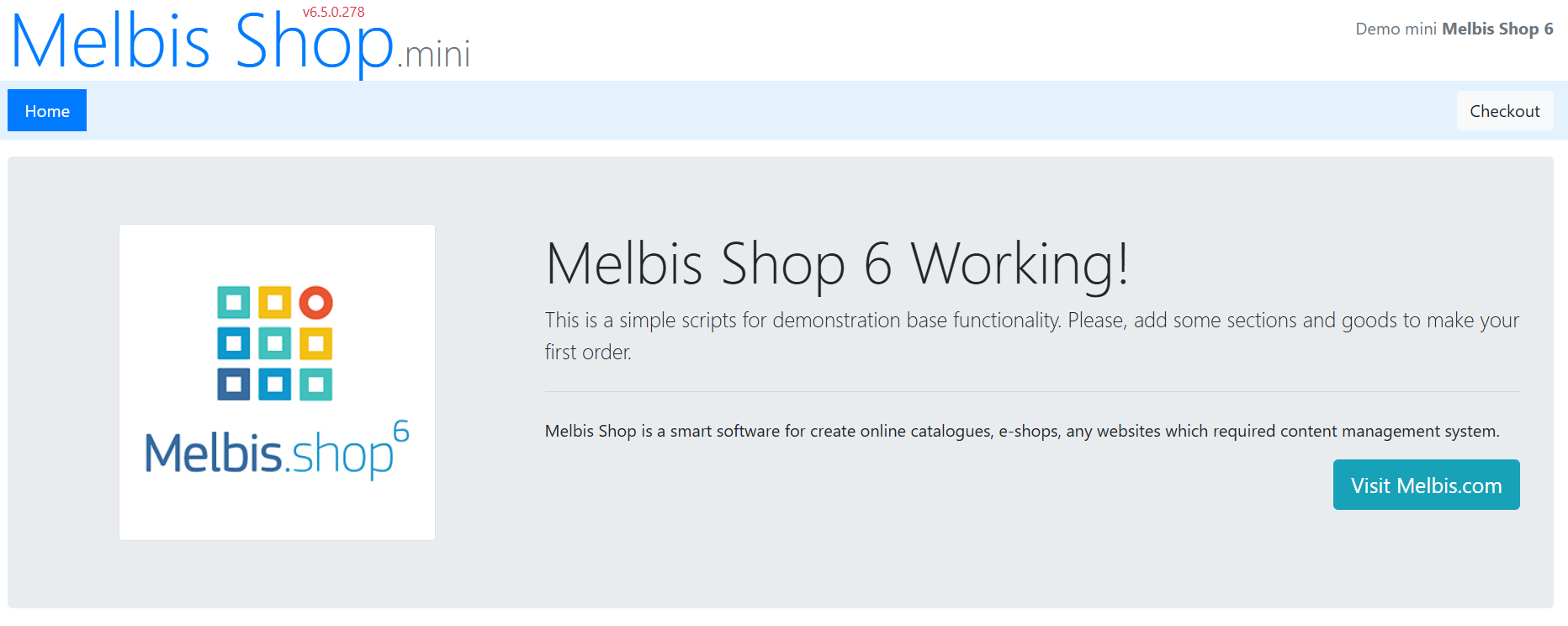
At this stage, your project is technically viable, and you can already begin working with the store in full: try creating the first sections, adding attributes, and filling the catalog with products. By default, an empty basic demo storefront is installed together with the core.
You may ask: why does the package include such a simple storefront, and only one version at that? That is intentional. We suggest doing it the right way, rather than following the old template where someone else’s vision is imposed on you: your store should be yours and should not look like the others. How to achieve this is explained in the sections connecting the AI assistant and working with the AI assistant.
In addition, before starting full operation, we recommend purchasing at least one license and switching the store from demo mode to working mode: purchasing a license.